Subtitle Style Settings: Apply Presets and Preview Results Fast
1. Feature Overview
Add Subtitle includes a rich library of subtitle styles—featuring multiple dynamic caption effects—so you can quickly match subtitles to your video content and highlight key information. You can apply a preset style in one click, or fine-tune style parameters for subtitles that better fit your brand and content tone.
Step 1 、2 | Step 3 | Step 4 |
|---|---|---|
 |  |  |
2.How to Use
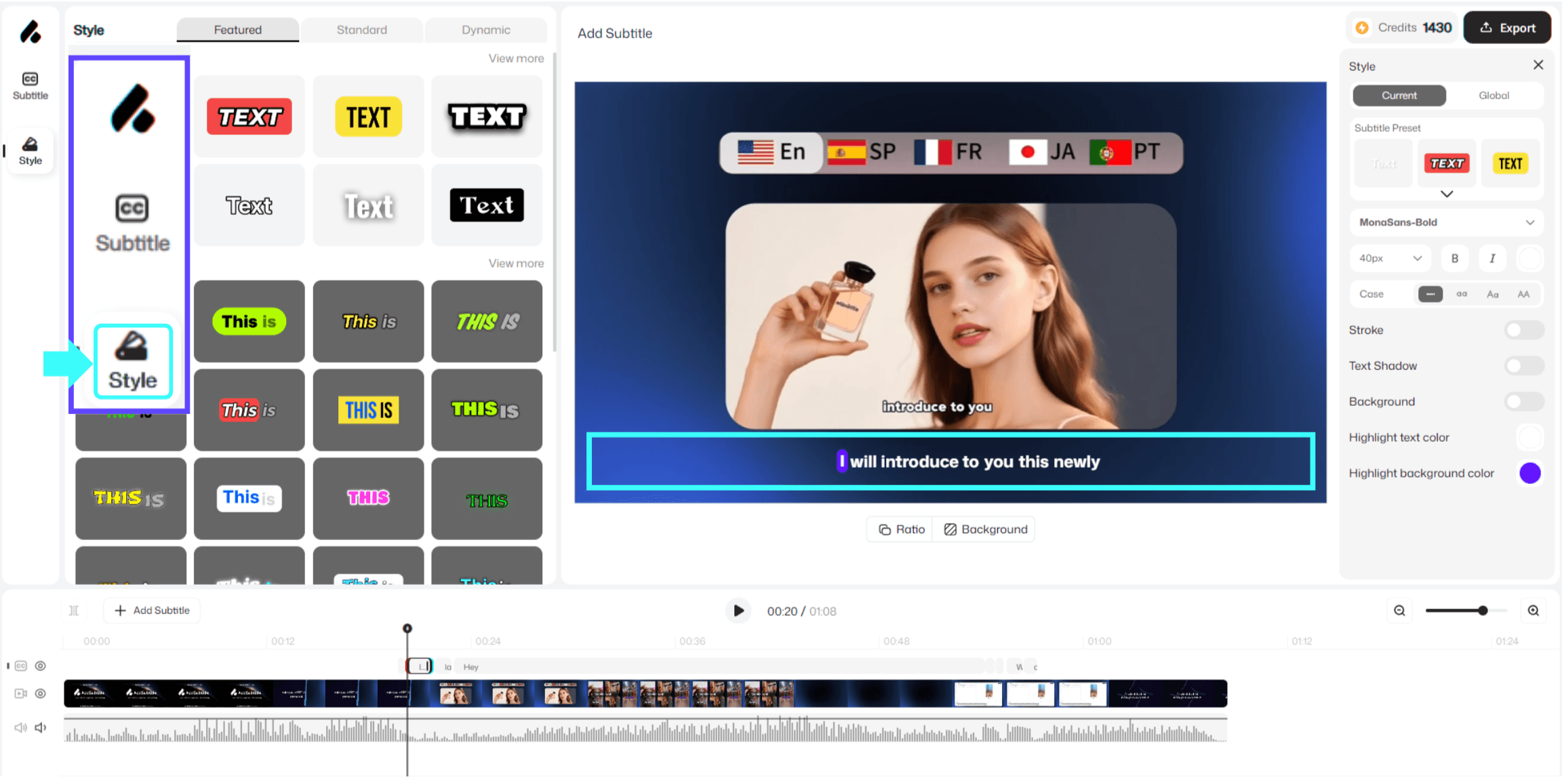
Open the「Subtitles」panel, then click 「Style」on the left.
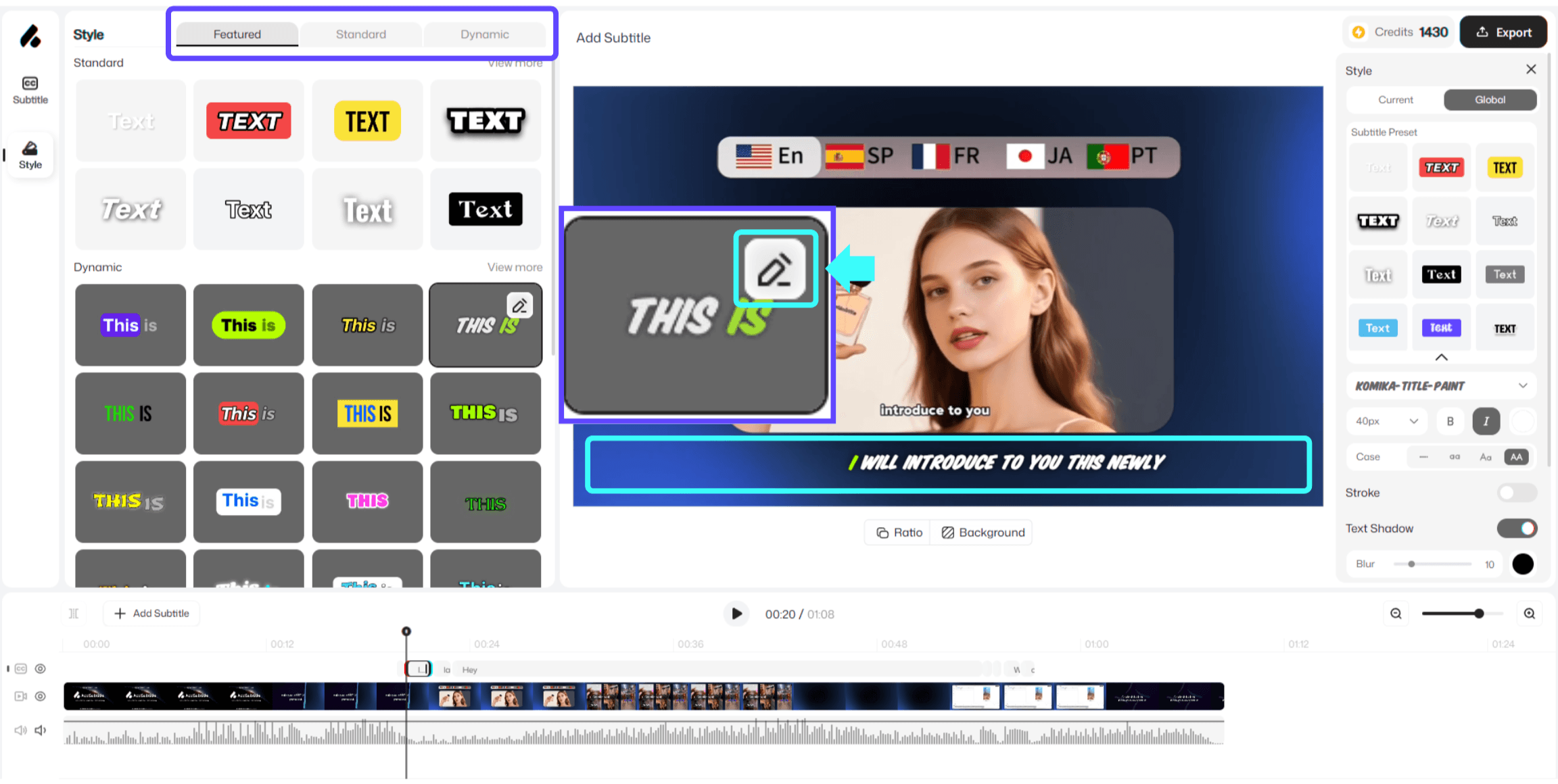
Browse the three style categories in Add Subtitle:
Featured: recommended and commonly used styles
Dynamic: subtitle styles with animation effects
Basic (Static): clean, stable static subtitle styles
Click any style to try it, and preview the result in real time in the right-side preview window.
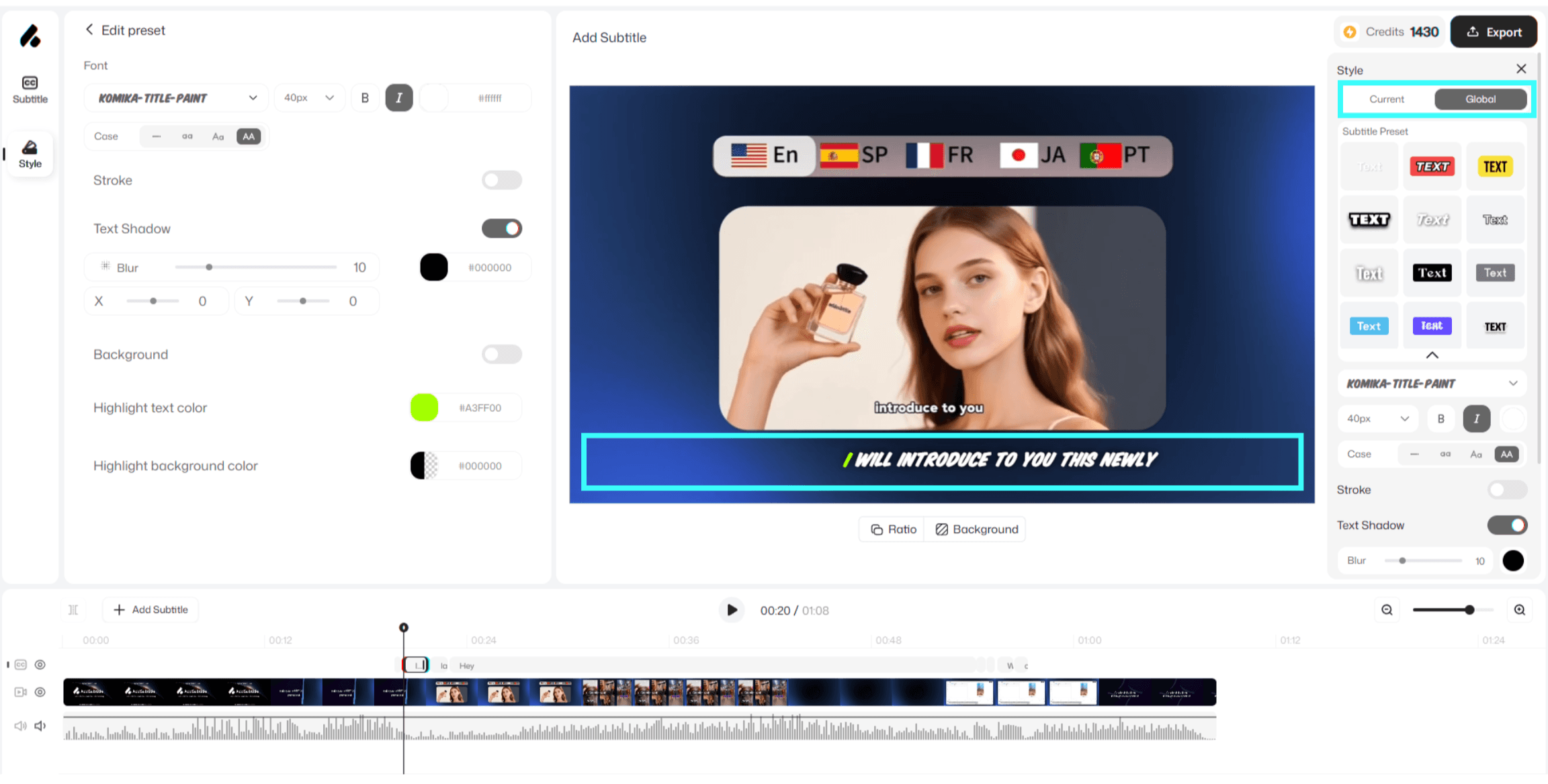
To edit style details, select a style and click the「 Edit 」icon in the top-right corner of the style card. You can then adjust preset parameters such as font weight, font size, color, and more.
3. Usage Notes
Adjust Only the Current Subtitle:When your video contains a lot of information—or you want to emphasize a specific line—you can use the subtitle style panel on the right to adjust the style for the current subtitle only.
This setting applies only to the current subtitle
It won’t affect other subtitles, and it won’t change your global style settings