Subtitle Box: Adjust Subtitle Width
1、Feature Overview
When subtitles appear as two or more lines and take up too much space on screen, you can adjust the 【Subtitle Box Width】 to make the layout more compact—so subtitles display in a single line (or with fewer line breaks).
This action only changes the subtitle box size. It won’t affect your subtitle style, won’t distort the text, and will be applied to all subtitles globally.
Before | After |
|---|---|
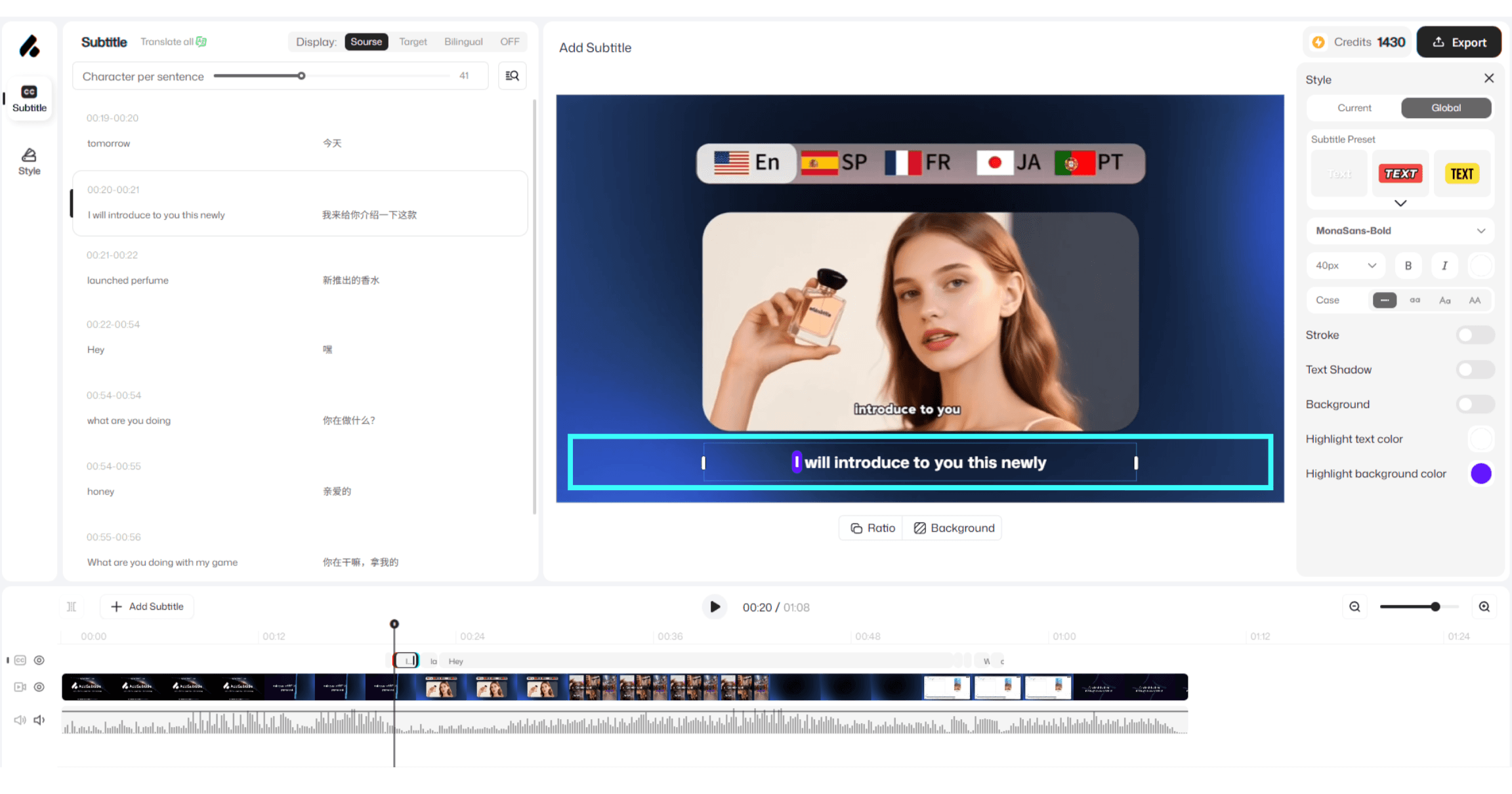 | 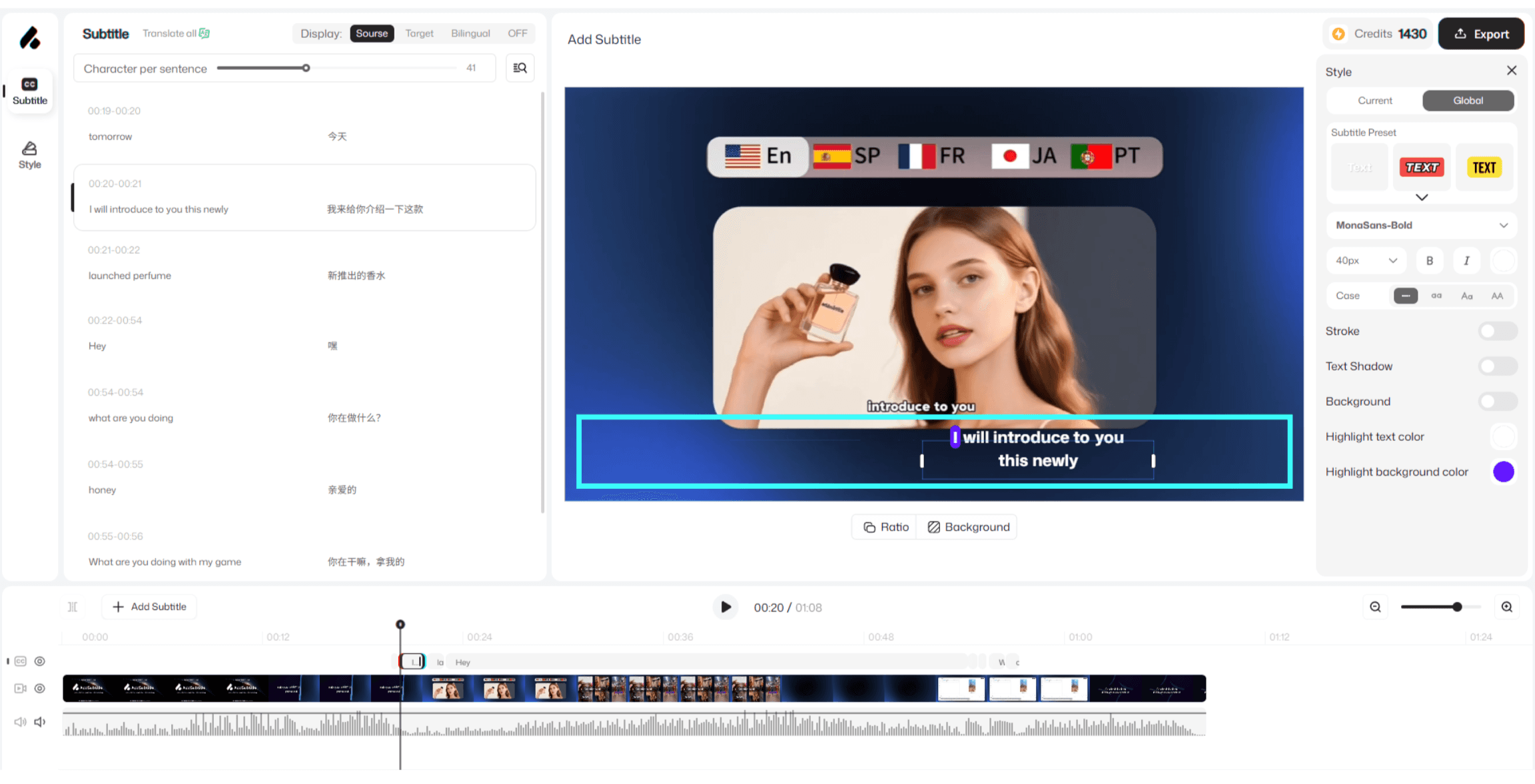 |
2、 How to Use
Click to select the 「Subtitle Box」 on the canvas.
Move your cursor to the two vertical drag handles on the edge of the subtitle box.
Drag to widen or narrow the subtitle box. Subtitles will automatically reflow and wrap based on the new width.
3、Usage Notes
Only width is adjustable (for now): You can adjust the subtitle box width, but height adjustment isn’t supported yet.
You can still select it even if it goes off-screen: If the subtitle box extends beyond the video frame, the outline will still show as a thin blue border. Click anywhere within the blue outline to select and move it.
Accidentally moved subtitles off-screen? If the subtitle box is outside the frame and you can’t click it directly, select the corresponding line in the subtitles panel. Then click the current subtitle template in the top-right corner of that subtitle text box to relocate and adjust the subtitle box position on the canvas.