Replace: Select the Subtitle Text You Want to Replace
1、 Feature Overview
In some cases, Add Subtitle’s automatic recognition may be affected by factors such as unclear pronunciation, very fast speech, or heavy use of slang—resulting in subtitle inaccuracies. When this happens, you can use the「 Replace」 feature during manual review to quickly correct errors, including batch replacement.
Step 1 | Step 2 | Step 3 |
|---|---|---|
 |  |  |
2、 How to Use It
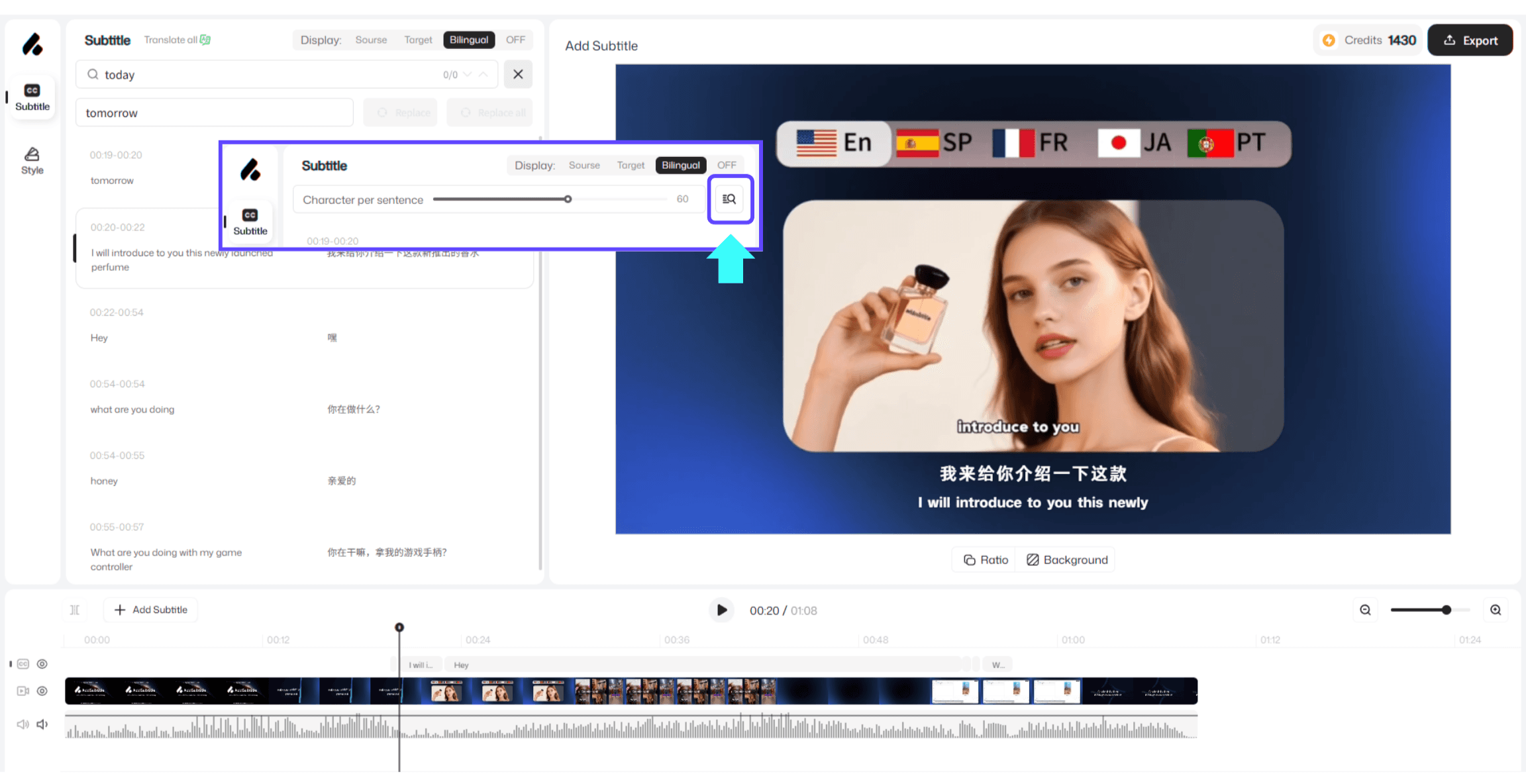
Go to the video editor page and open the 「Subtitles panel」.
Next to the 「CPL」adjustment bar, find the 「View」 option for the relevant voiceover track and click to enter.
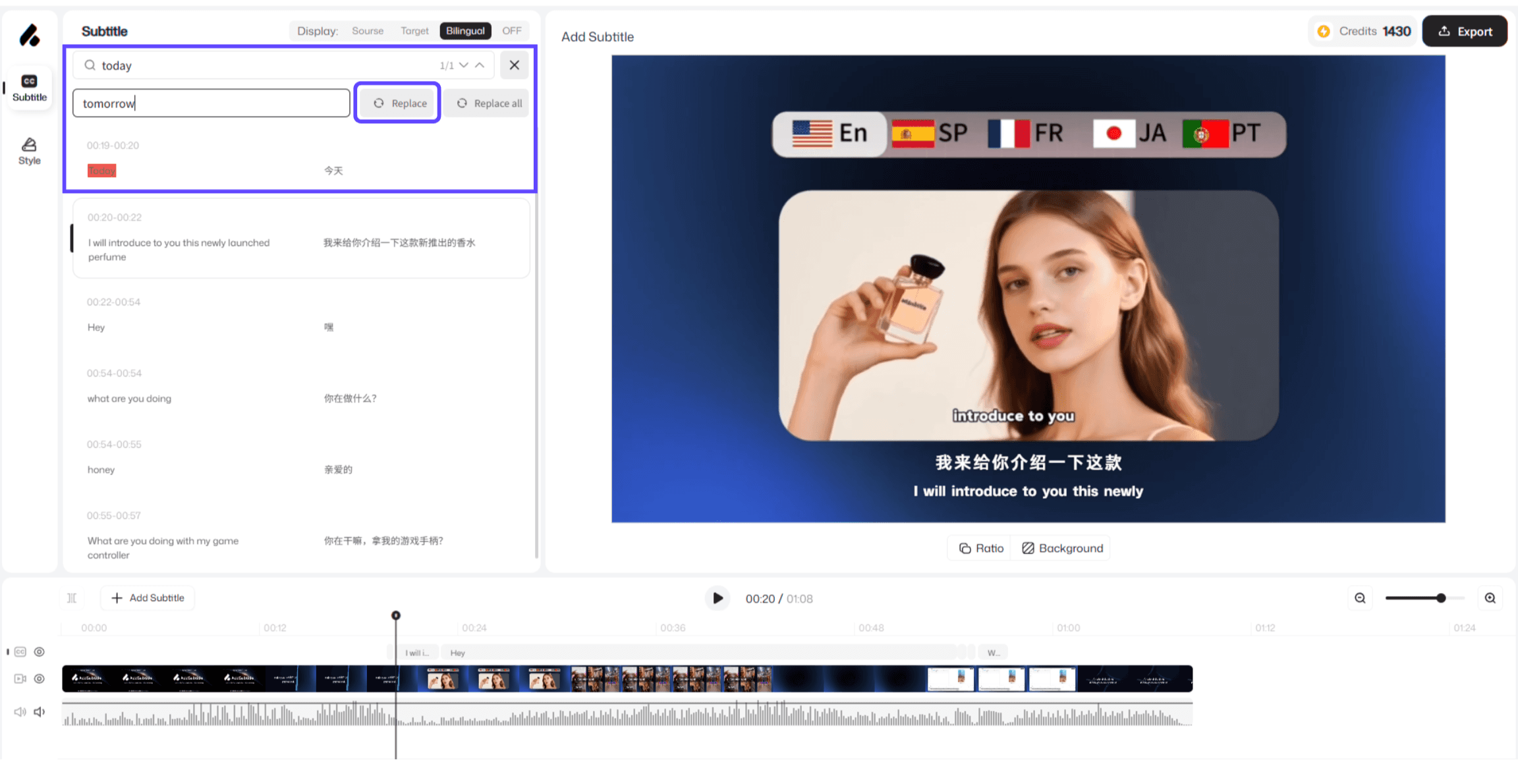
In the search box, enter the original text you want to fix.
In the 「Replace」 field, type the correct text, then choose one of the following actions:
Replace: replace matches one by one in order
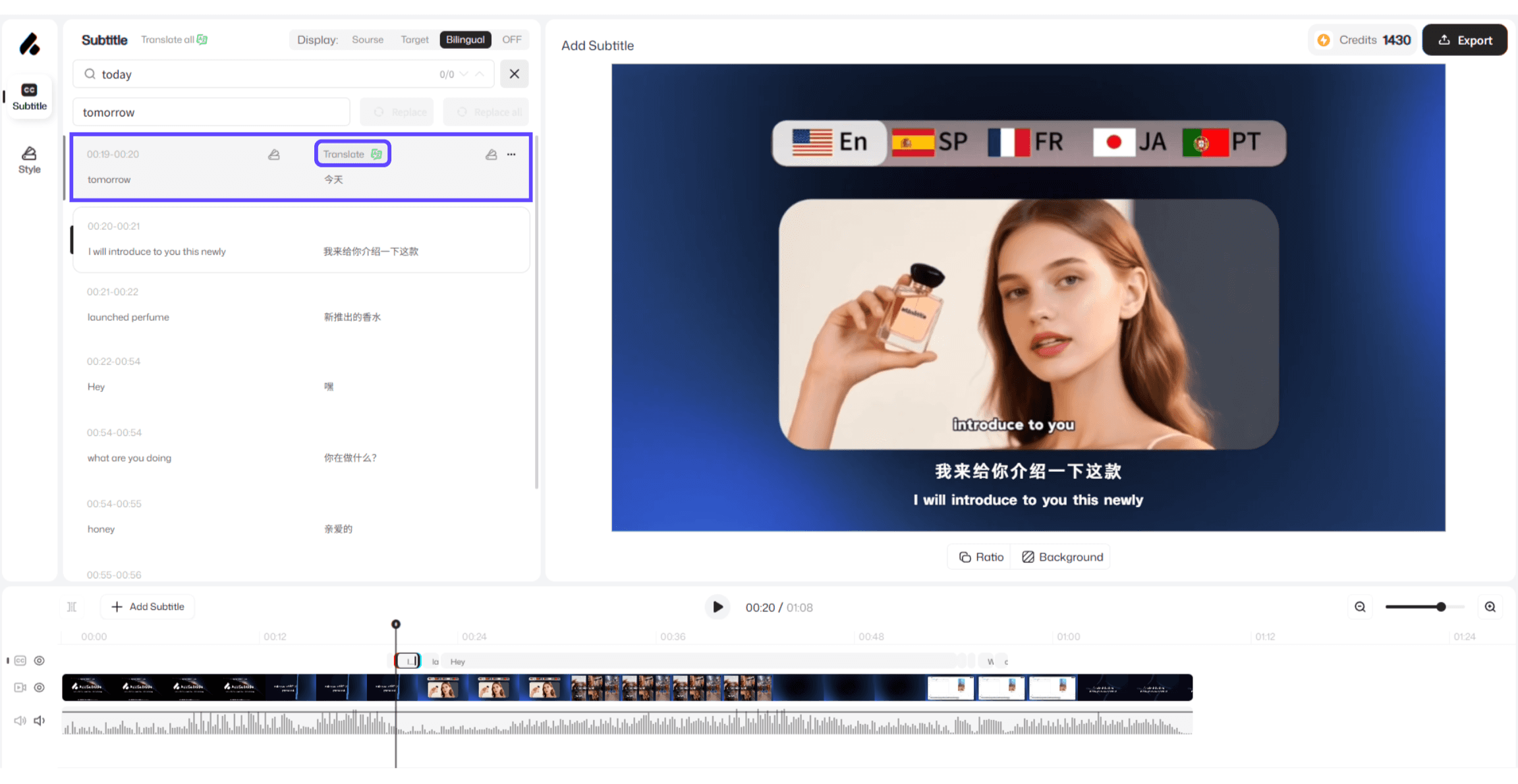
Replace after selecting a subtitle line: click a specific subtitle text box, then replace only that line
Replace All: replace all matches in one click
3、 Usage Notes
If multiple matches are found, you can choose「 Replace (one by one) 」or 「Replace All」, depending on your needs.
Replacements take effect instantly and update automatically—no manual refresh needed.
The translated text will only update after you re-run translation.