Split Clips & Manage Overlaps。
1、Feature Overview
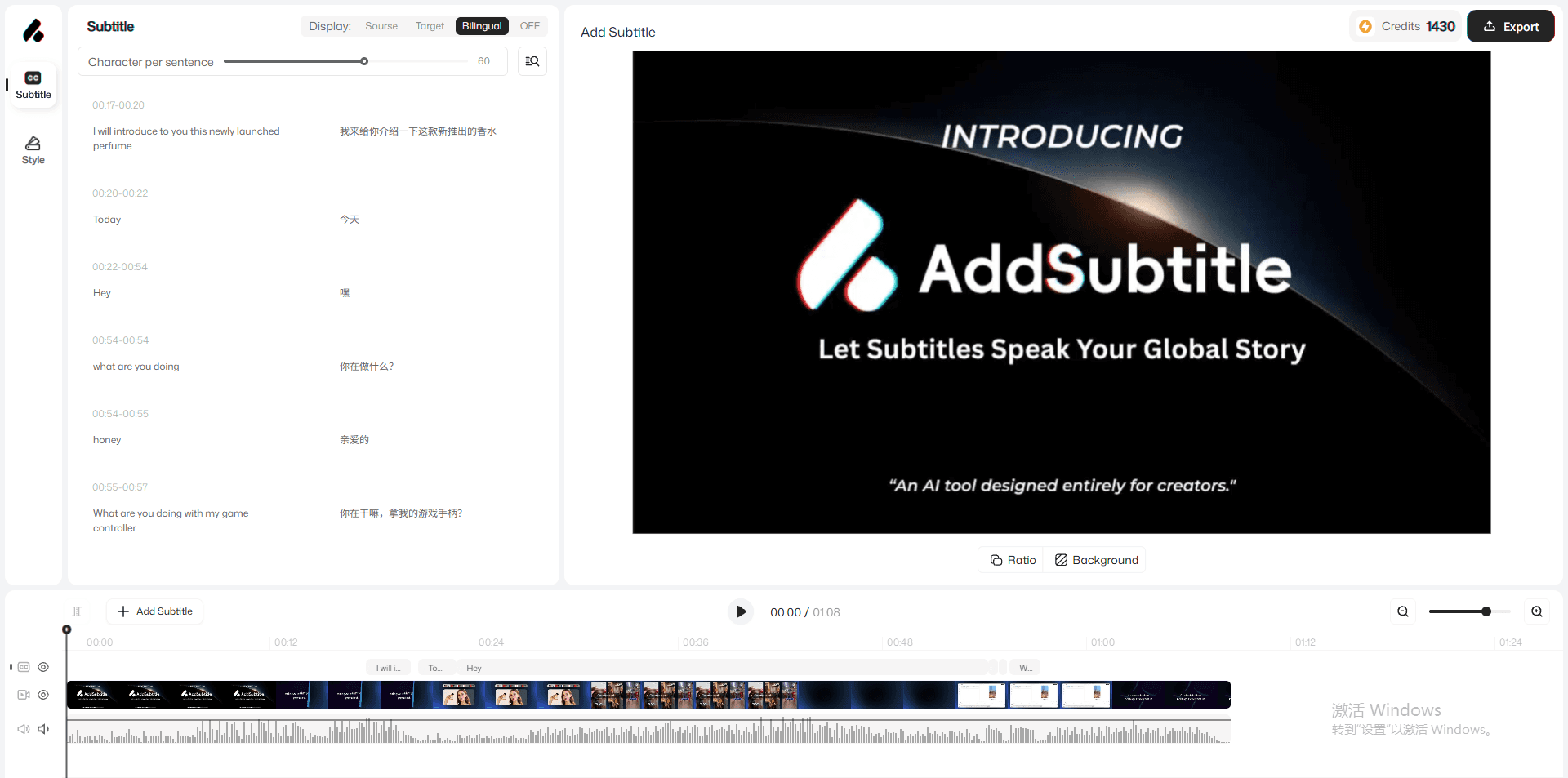
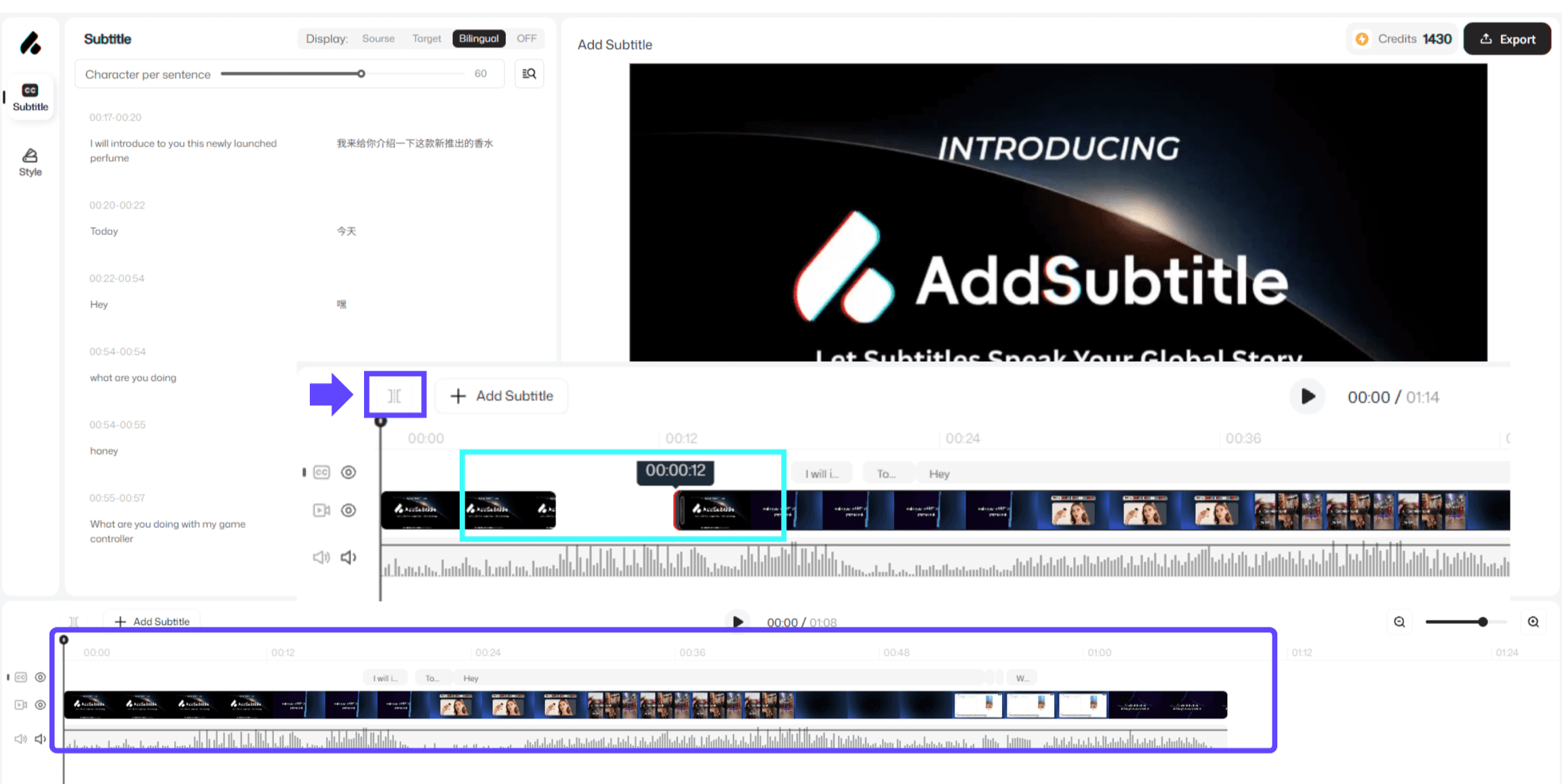
When a video track becomes too long and hard to locate or manage quickly, you can use the 「Cut」 feature to split it into multiple segments. After splitting, each segment can be adjusted independently—move its position, change its duration, and organize your timeline more efficiently for better control and faster editing.
Before | After | |
|---|---|---|
 |  |  |
2、How to Use
In the timeline, select the video track or the specific segment you want to edit.
Move the playhead to the exact point where you want to cut.
Click 「Cut」 to split the clip. The video will be divided into multiple independent segments.
To adjust segment order or duration, drag segments directly, or drag the segment edges to trim/extend.
3、Usage Notes
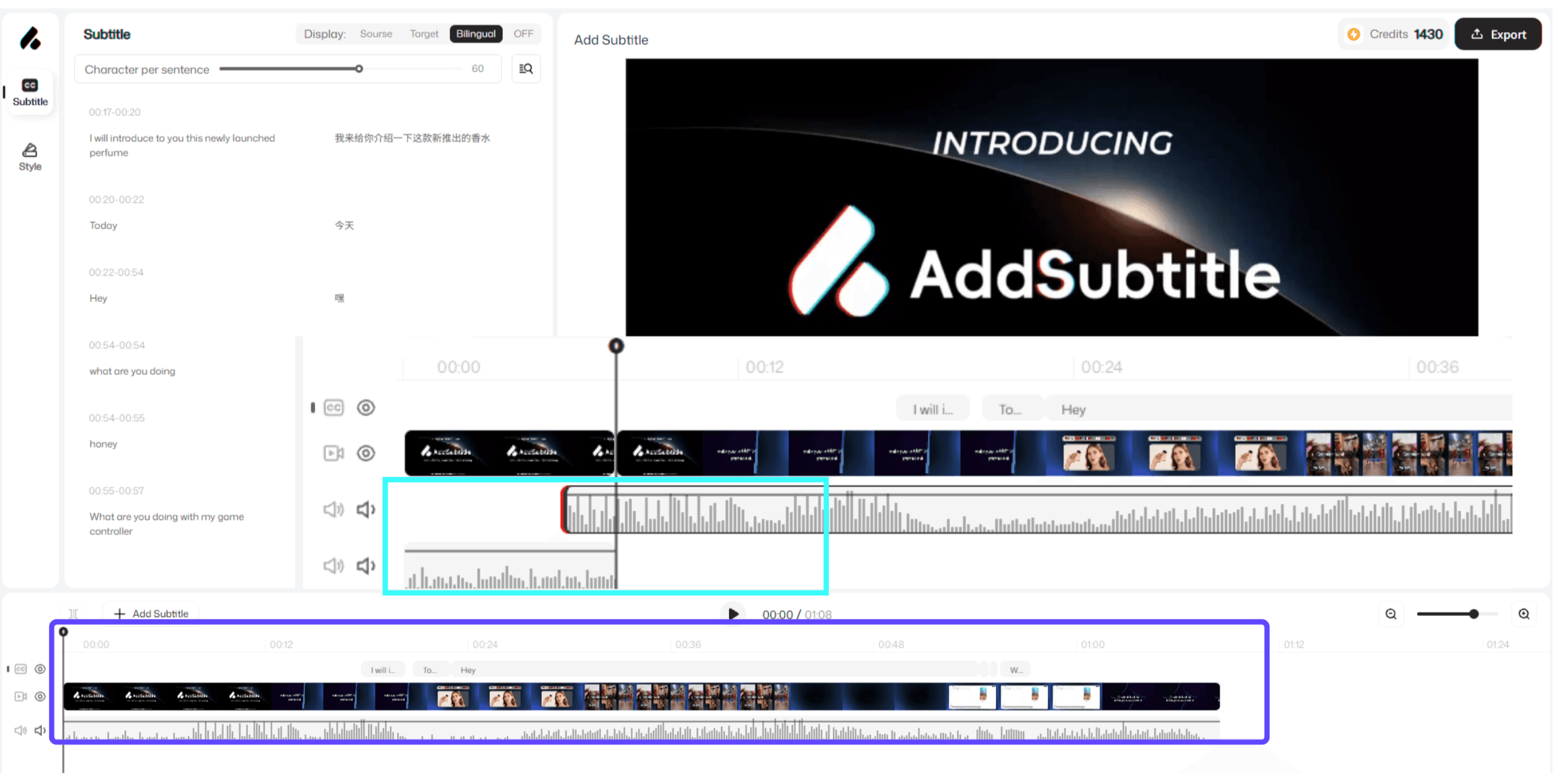
When segments overlap while dragging, they will automatically display in two stacked rows; when they no longer overlap, they will return to the same row.
Even when they return to the same row, segments remain independent. Currently, merging them back into one continuous clip is not supported.