Get to Know the Video Translation Editor
1、Understanding Video Translation
The 「Video Translation」 feature uses AI to automatically detect the language of the original audio and—while referencing the original voice tone—supports translating subtitles into 130+ languages. When multiple speakers appear in a video, 「Video Translation」 can also identify and manage different voices, and allows you to change each speaker’s voice—making it flexible for scenarios like language learning and cross-border e-commerce.
2、Video Translation Editor Overview
1) Start Video Translation
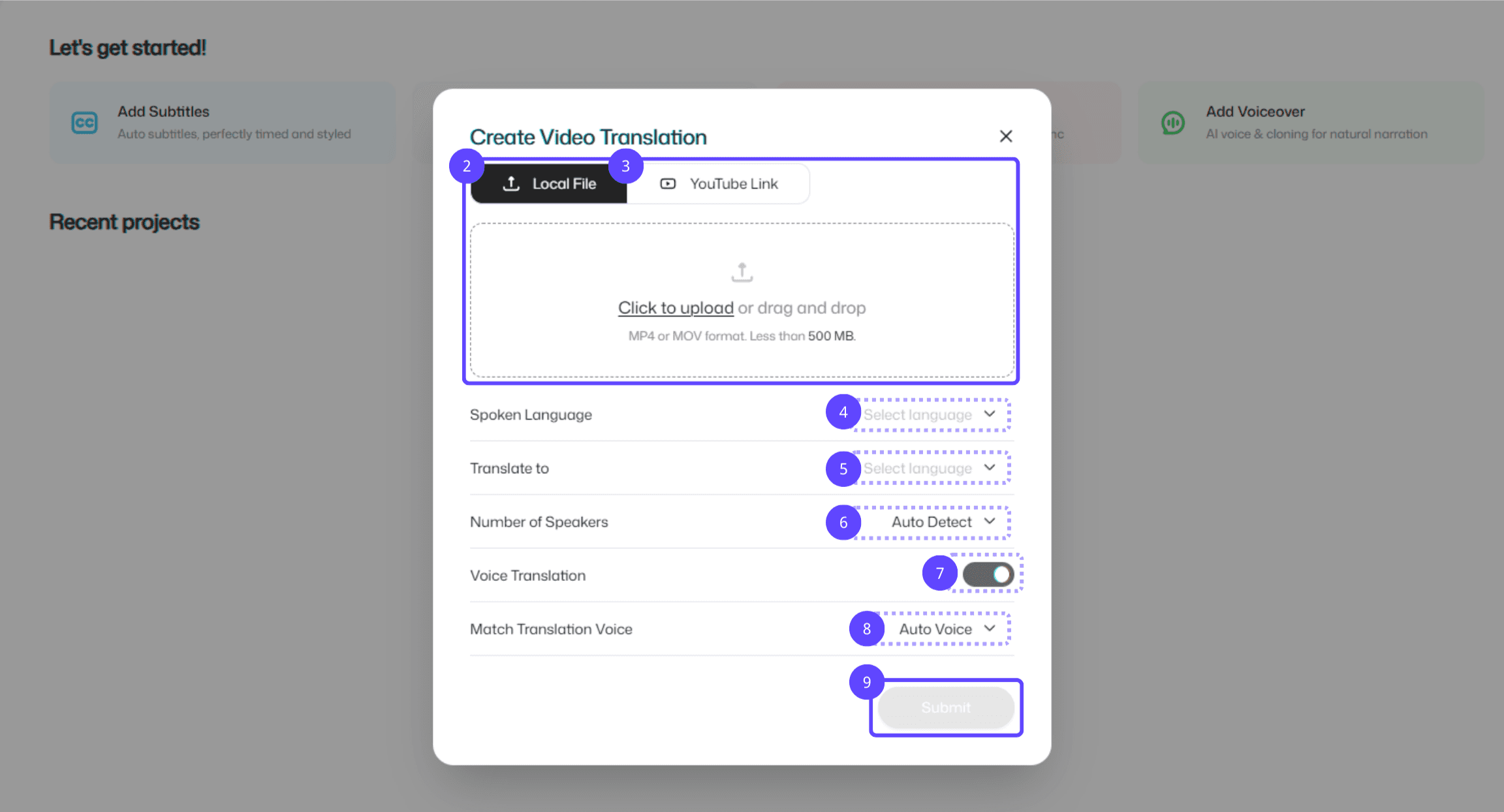
Function entry: Click to enter the 「Video Translation」 feature page.
Local file: Click to upload a local video file, or drag and drop the video into the upload area.
YouTube link: Paste the YouTube video link you want to add subtitles to, and import it directly.
Video language: Select the video’s source language (to improve recognition accuracy).
Translate to: Select the target language for subtitle translation.
Number of speakers: Select how many speakers appear in the video; AI auto-detection is also supported.
Voice translation: Click to enable the translated dubbing feature.
Match translated voice: Click to choose a translated dubbing voice. It’s recommended for videos with only one speaker.
Submit: Confirm your settings and click 「Submit」 to start processing the video file.
2) Edit & Preview Area
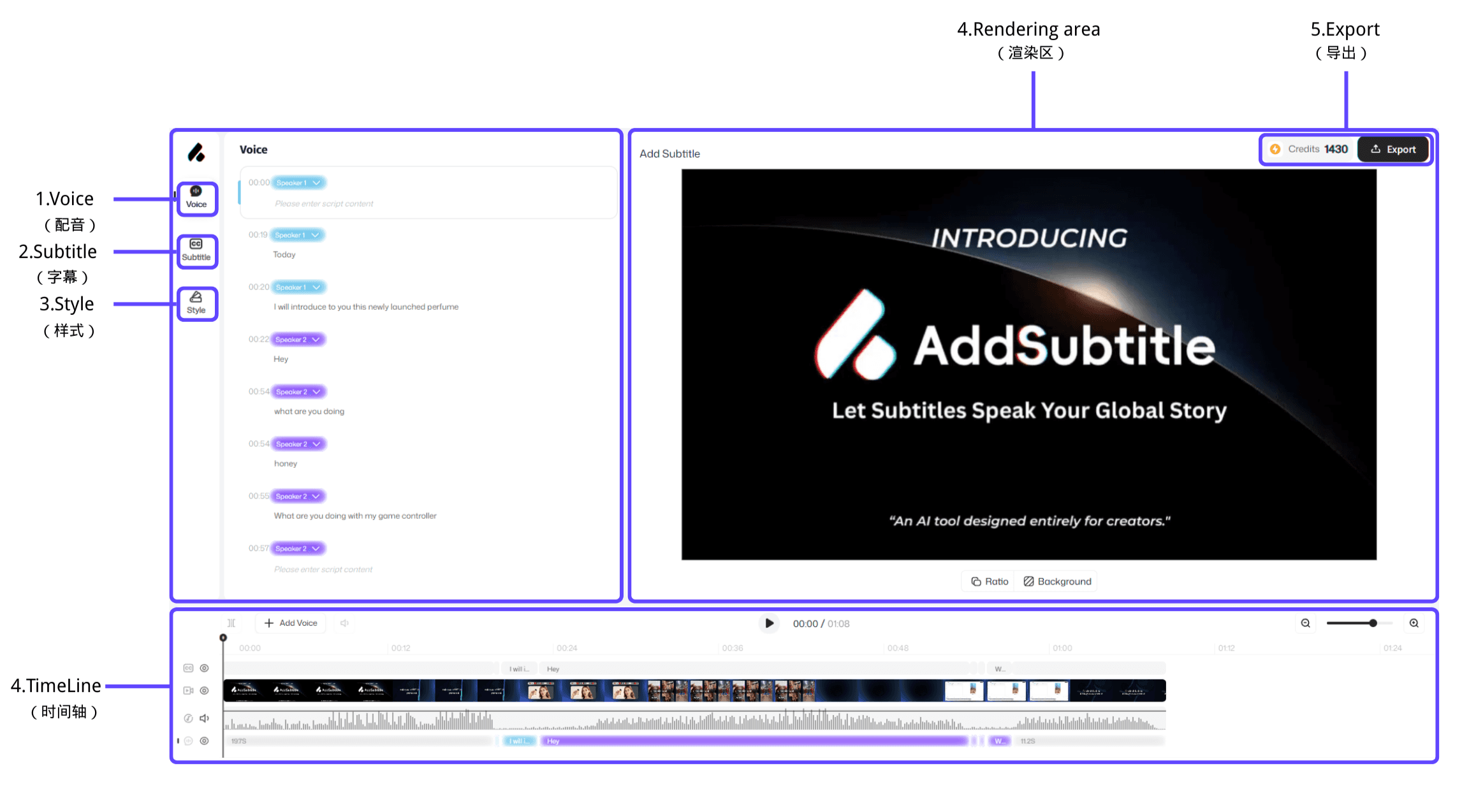
Dubbing: Click to switch to the dubbing panel to view and edit dubbing content, and choose the number of speakers and each speaker’s voice.
Subtitles: Click to switch to the subtitles panel to view, edit, or add subtitles. You can also choose how subtitles display—for example, bilingual subtitles or translation-only subtitles.
Style: Click to browse and apply subtitle style templates for quick visual consistency.
Timeline: Manage video tracks, audio tracks, and subtitle tracks in one place for precise adjustments.
Render area: Preview in real time how subtitle styles appear on the video.
Export: Select export options as needed and export your video in one click.