Speaker Selection: Add or Switch Voices for Subtitles
1、Feature Overview
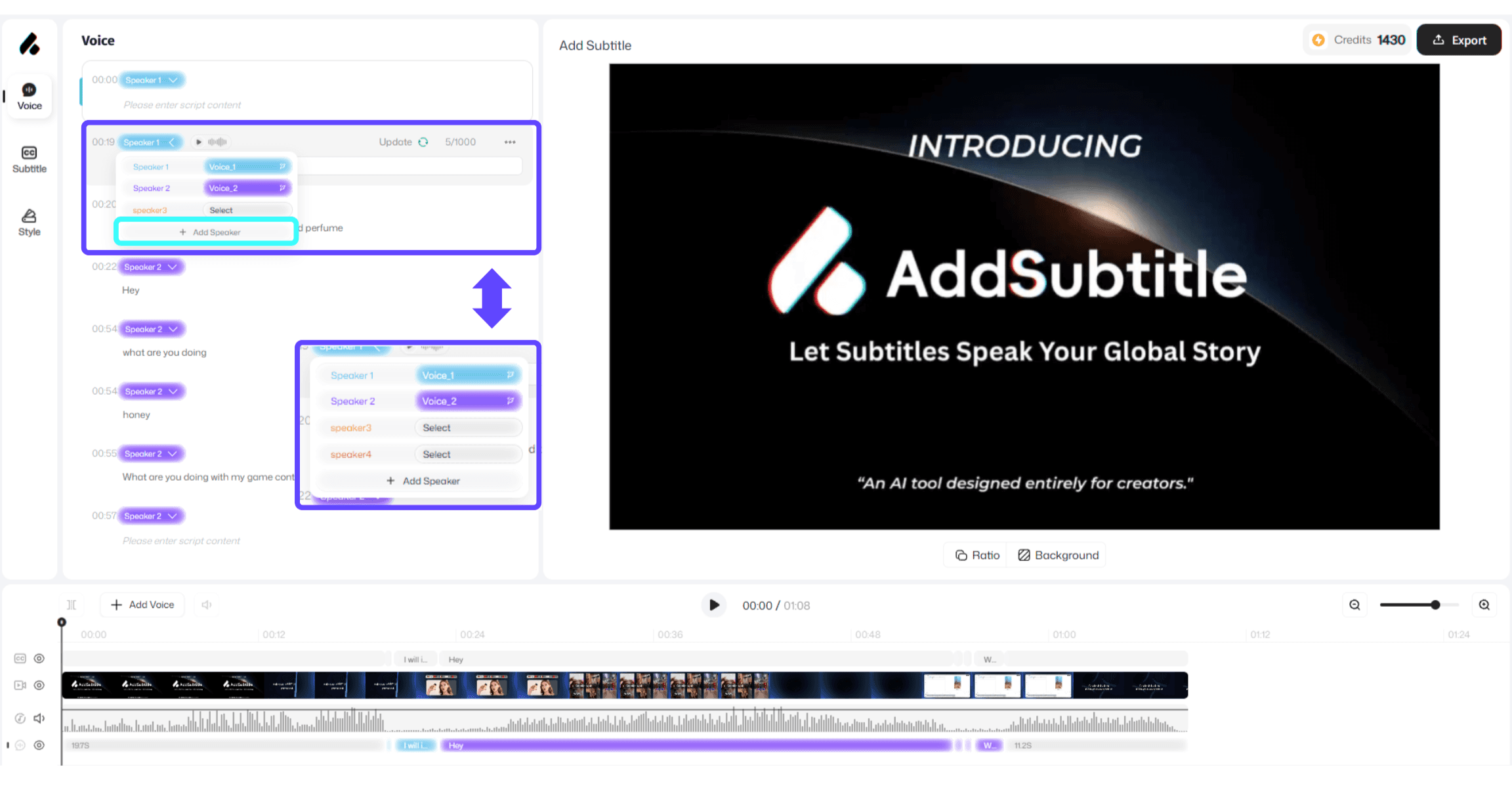
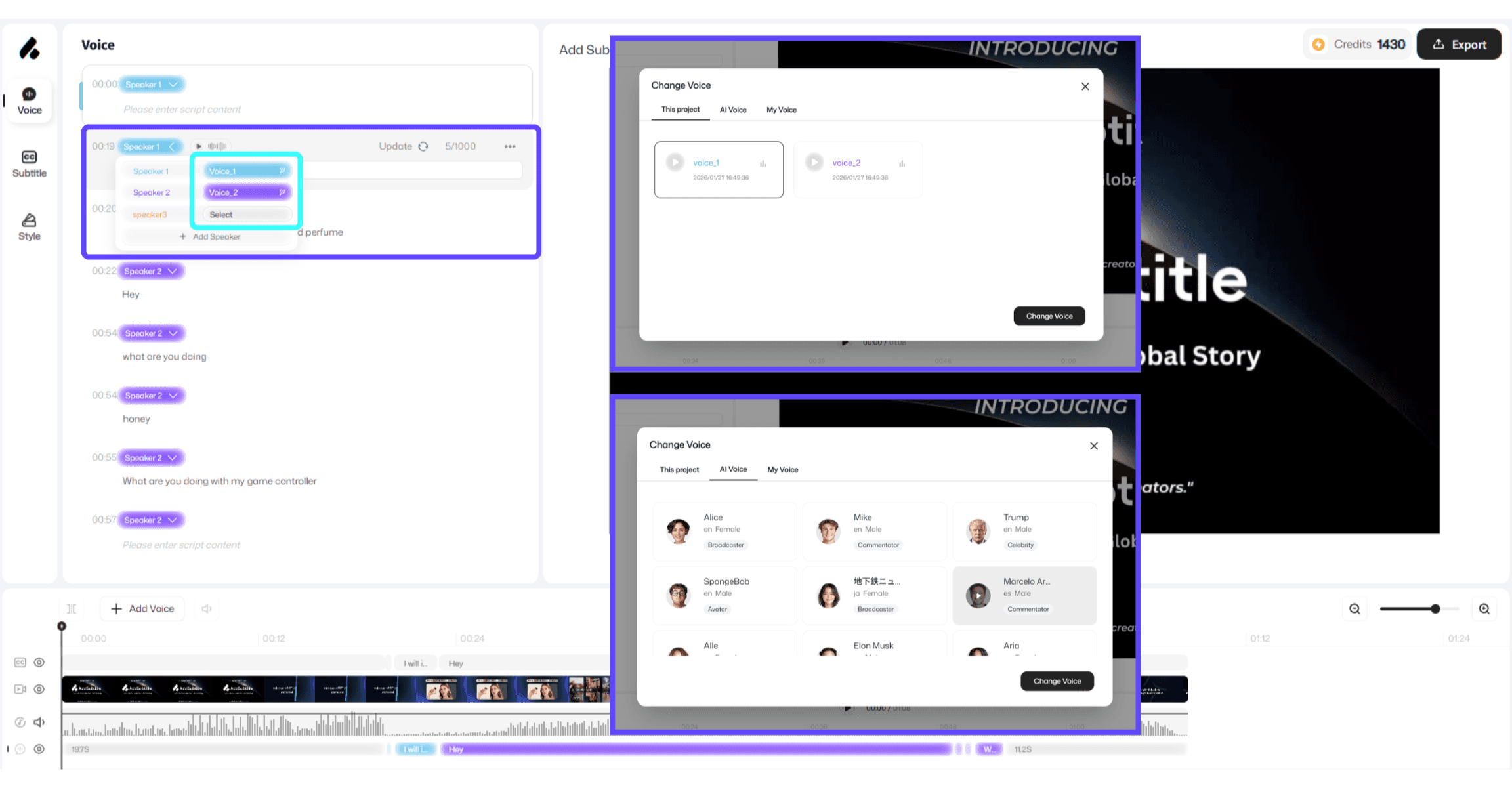
In the 「Rewrite & Dub」 feature, you can choose or replace a voice for each speaker in your video. This helps you clearly distinguish roles and keep dubbing style consistent.
Step 1 | Step 2 |
|---|---|
 |  |
2、How to Use
On the editor page, open the 「Dubbing」 panel.
Click inside the dubbing panel to view the number of speakers in the current video and the list of voices in use.
Click any voice color block, then choose and switch to a new dubbing voice.
To add a new role, click 「Add Speaker」 to increase the number of speakers and assign a voice to the new speaker.
3、Usage Notes
You can assign different voices to different speakers, or let multiple speakers use the same voice.
For easier identification, each speaker is marked with a different color (colors are only used to distinguish speakers and do not affect the voice output).