CPL: Split Long Subtitles More Naturally
1、 Feature Overview
When editing subtitles, you may run into lines that are too long—for example, the line breaks feel unnatural, the meaning gets split awkwardly, or the subtitles take up too much screen space and hurt the viewing experience.
That’s where 「CPL (Characters Per Line) 」comes in. By adjusting CPL, you can control how subtitles wrap and how line breaks flow—so subtitles match natural language rhythm, the screen looks cleaner, and the message is easier to read.
Before | After |
|---|---|
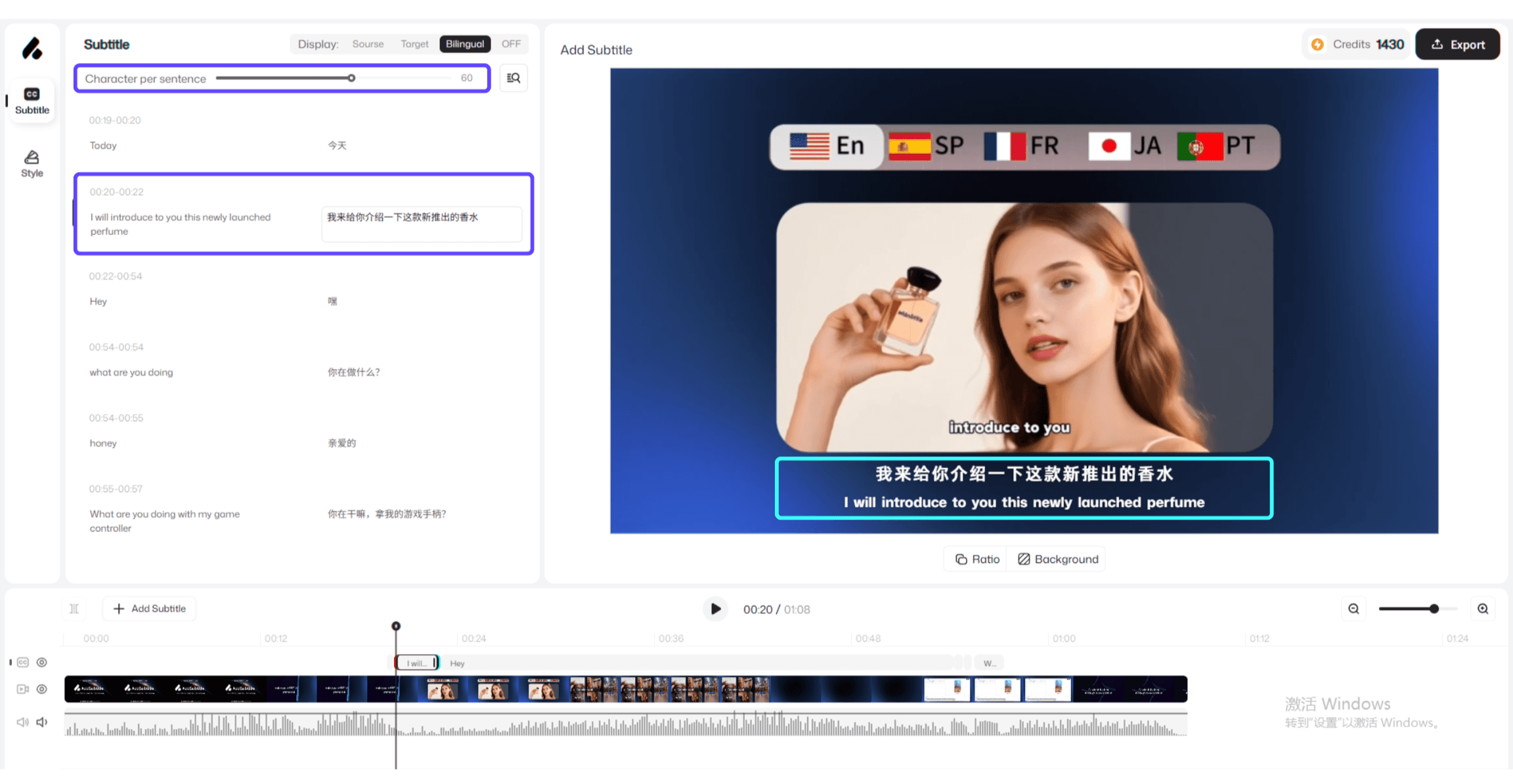 | 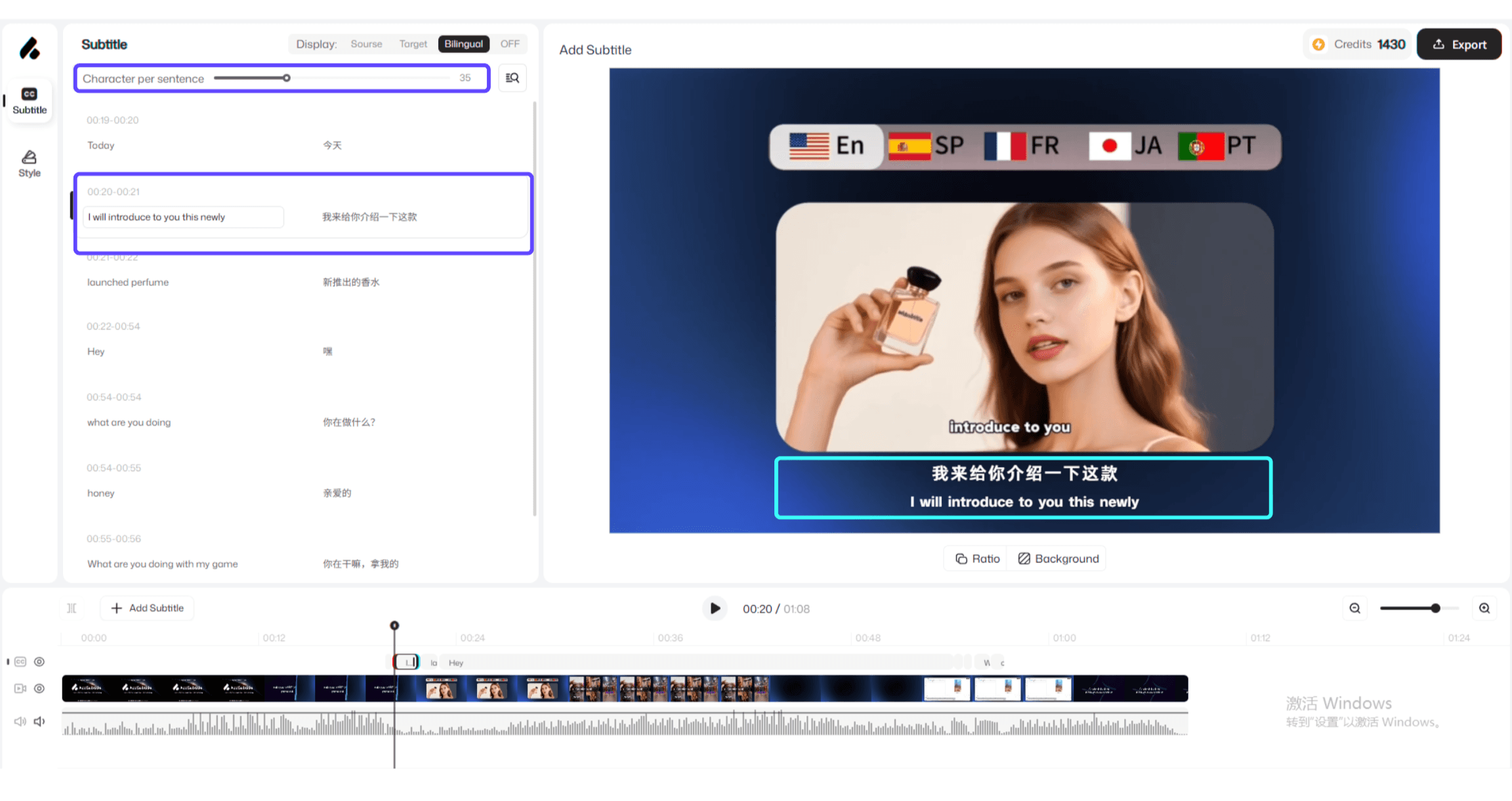 |
2、 How to Adjust CPL
Open the video editor and locate the Subtitles panel.
Find the Characters per line (CPL) setting.
Adjust the「CPL」 value (the default is usually 60):
Increase CPL: each line can fit more characters, so subtitles wrap less often and look “longer.”
Decrease CPL: each line fits fewer characters, so subtitles wrap more easily and look “shorter.”
2、Usage Notes
When you use AI to auto-generate subtitles, the system will automatically segment sentences based on meaning.
CPL is mainly used to improve how long single sentences display (for example, reducing frequent line breaks and improving reading rhythm).
CPL won’t merge two separate short subtitles into one. Even if you set CPL very high, two short subtitle lines will not “combine into a single line."