Get to Know the Add Voiceover Editor
1、Understanding Add Voiceover
「Add Voiceover」 supports voiceover dubbing in 10+ languages. There’s no need to choose or confirm a translation language—just type your target-language text directly into the script content: for example, type Chinese when adding Chinese voiceover; type Japanese when adding Japanese voiceover.
2、Add Voiceover Editor Overview
1) Start Add Voiceover
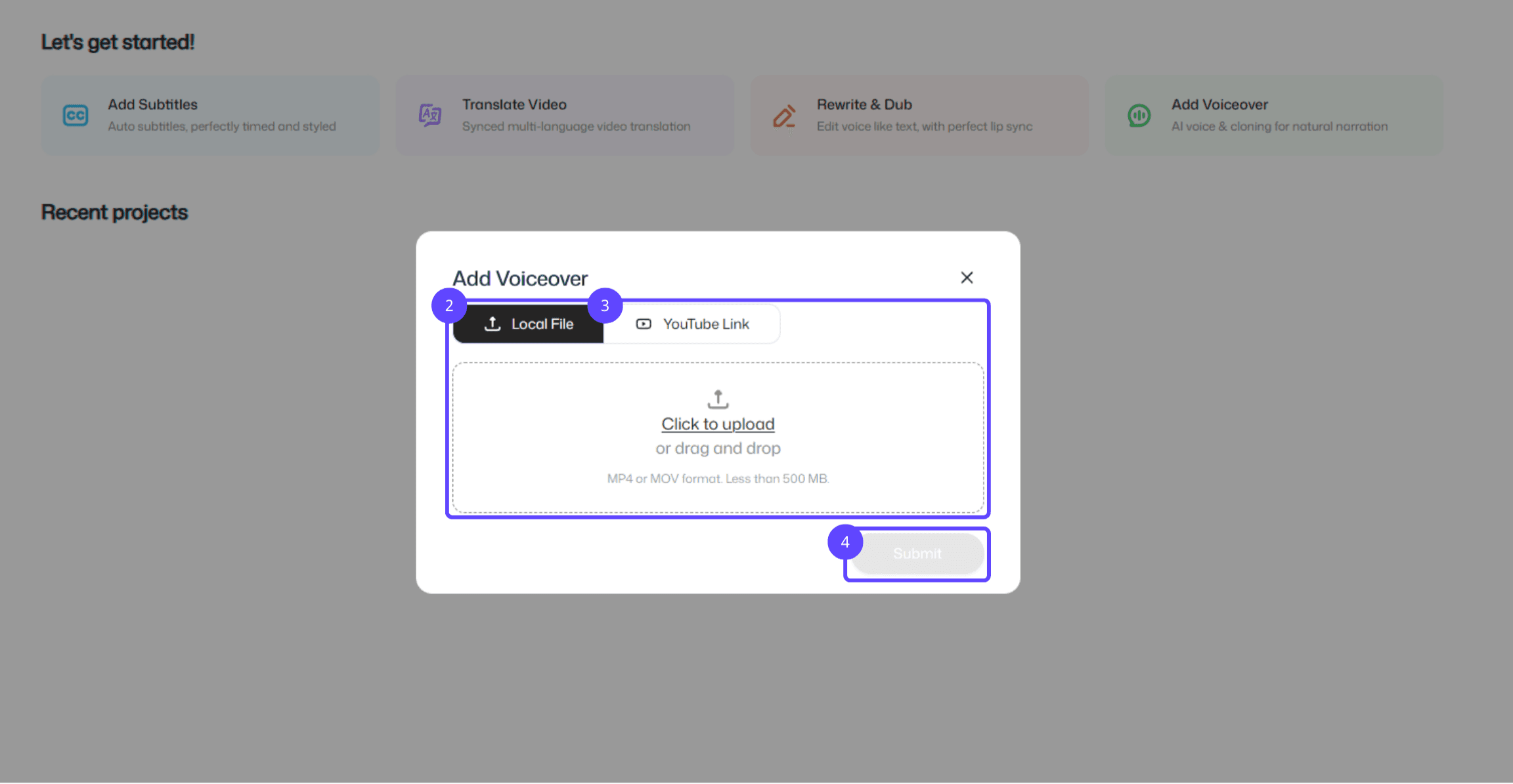
Function entry: Click to enter the 「Rewrite & Dub」 feature page.
Local file: Click to upload a local video file, or drag and drop the video into the upload area.
YouTube link: Paste the YouTube video link you want to add subtitles to, and import it directly.
Submit: Confirm your settings and click 「Submit」 to start processing the video file.
2) Edit & Preview Area
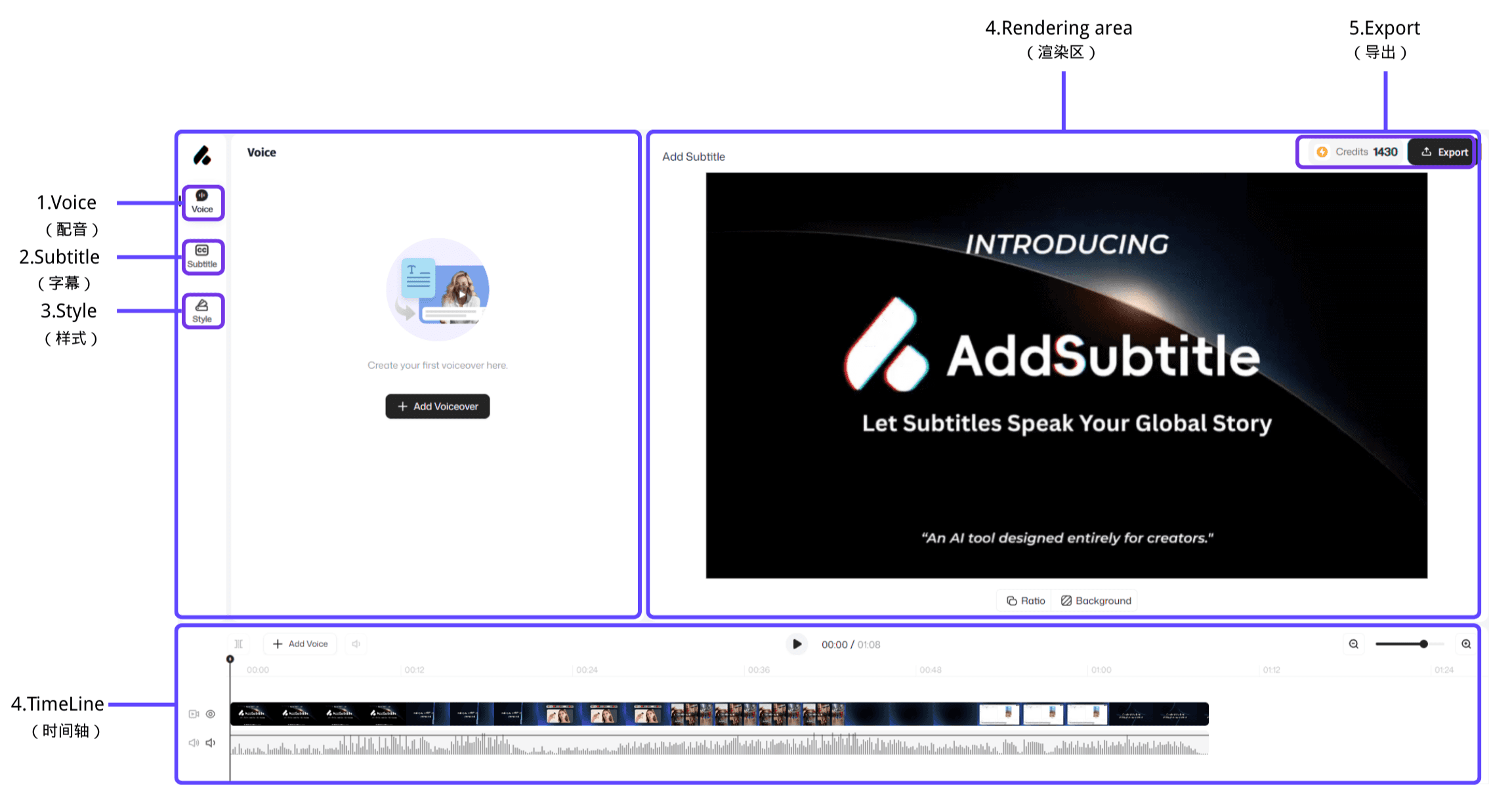
Dubbing: Click to switch to the dubbing panel to create voiceover, view and edit dubbing content, and choose the number of speakers and each speaker’s voice.
Subtitles: Click to switch to the subtitles panel to view, edit, or add subtitles. You can also choose how subtitles display—for example, bilingual subtitles or translation-only subtitles.
Style: Click to browse and apply subtitle style templates for quick visual consistency.
Render area: Preview in real time how subtitle styles appear on the video.
Timeline: Manage video tracks, audio tracks, and subtitle tracks in one place for precise adjustments.
Export: Select export options as needed and export your video in one click.