Dubbing Blocks: Control Speaking Speed by Adjusting Block Length
1、Feature Overview
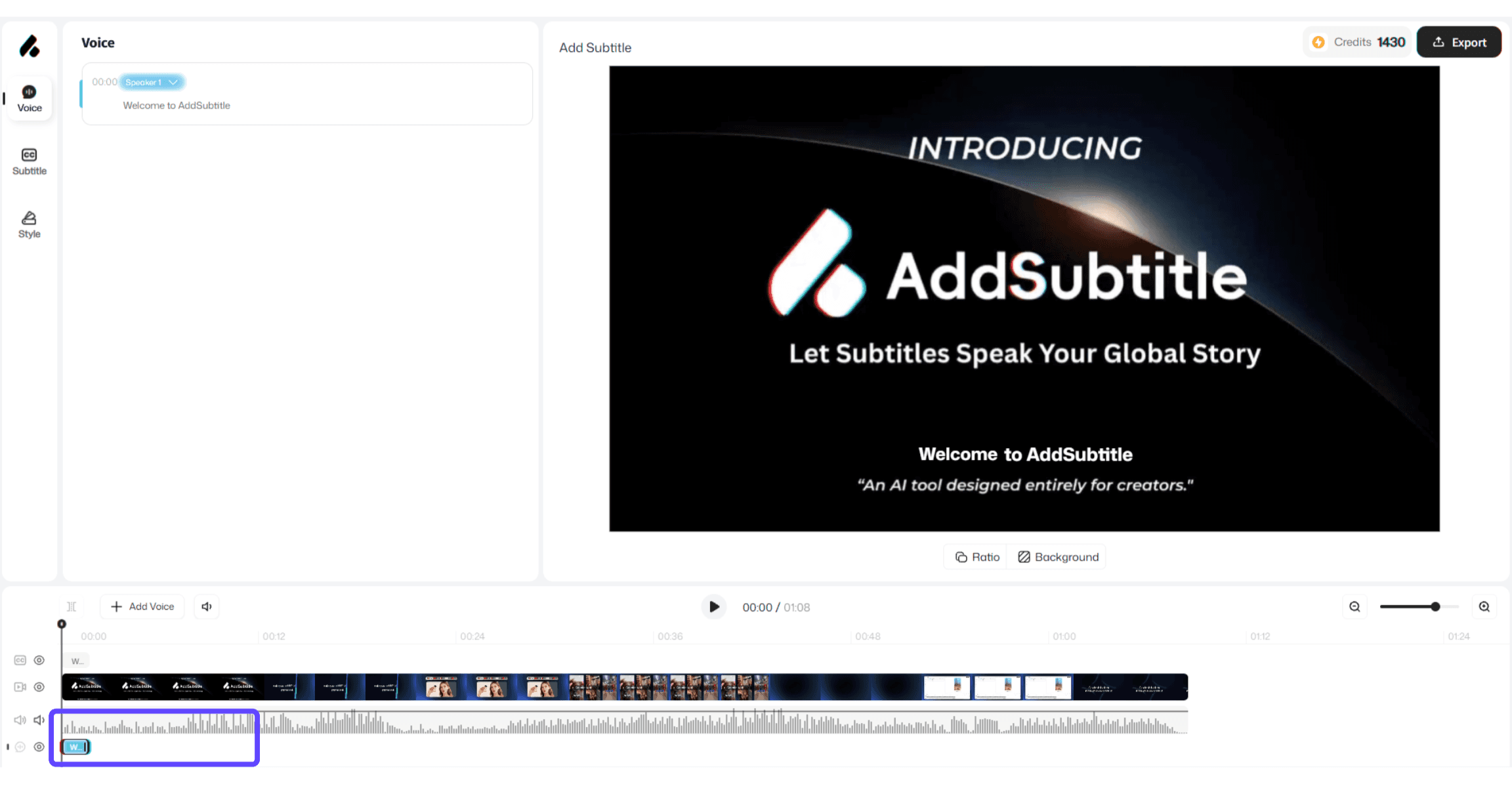
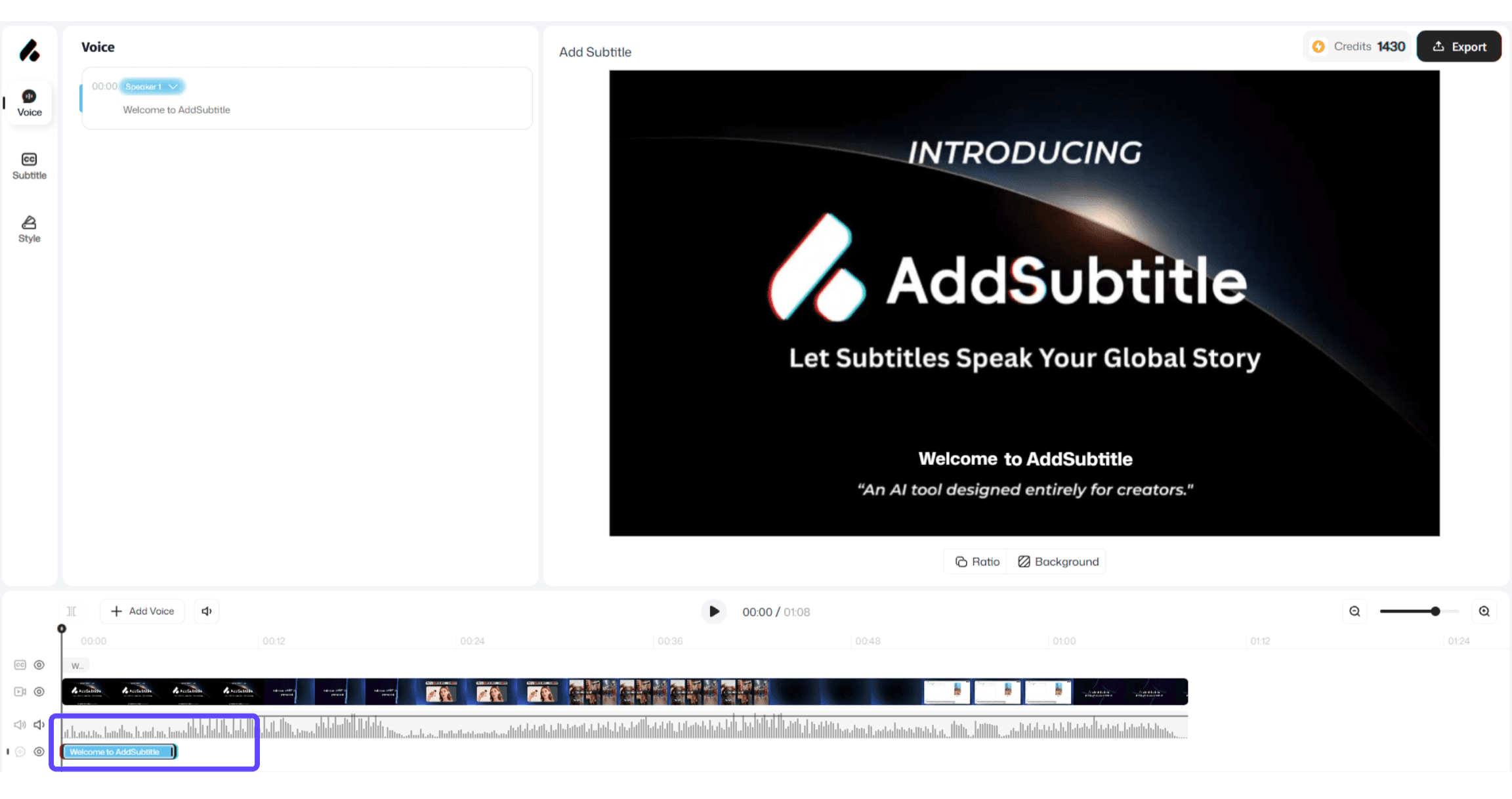
The voiceover feature can add dubbing to subtitles. Add Subtitle automatically recognizes your dubbing content and generates dubbing labels and 「Dubbing Blocks」 on the corresponding track—so you can align subtitles with visuals more intuitively and edit more efficiently.
Before | After |
|---|---|
 |  |
2、How to Use
After you add dubbing to subtitles, the system will automatically generate 「Dubbing Blocks」 and content labels on the corresponding track.
Drag the 「Dubbing Block」 to the right position to align it with the subtitles or the video.
Adjust speaking speed: drag the left or right edge of the dubbing block to change its length, which controls speaking speed.
The longer the dubbing block → the slower the speaking speed.
The shorter the dubbing block → the faster the speaking speed
3、Usage Notes
Rhythm matching: We recommend fine-tuning the dubbing block length based on scene cuts and how long subtitles stay on screen, so the delivery feels more natural and aligned.