Track Volume: Sync Volume Across the Track, Adjust Dubbing Volume Per Block After Splitting
1、Feature Overview
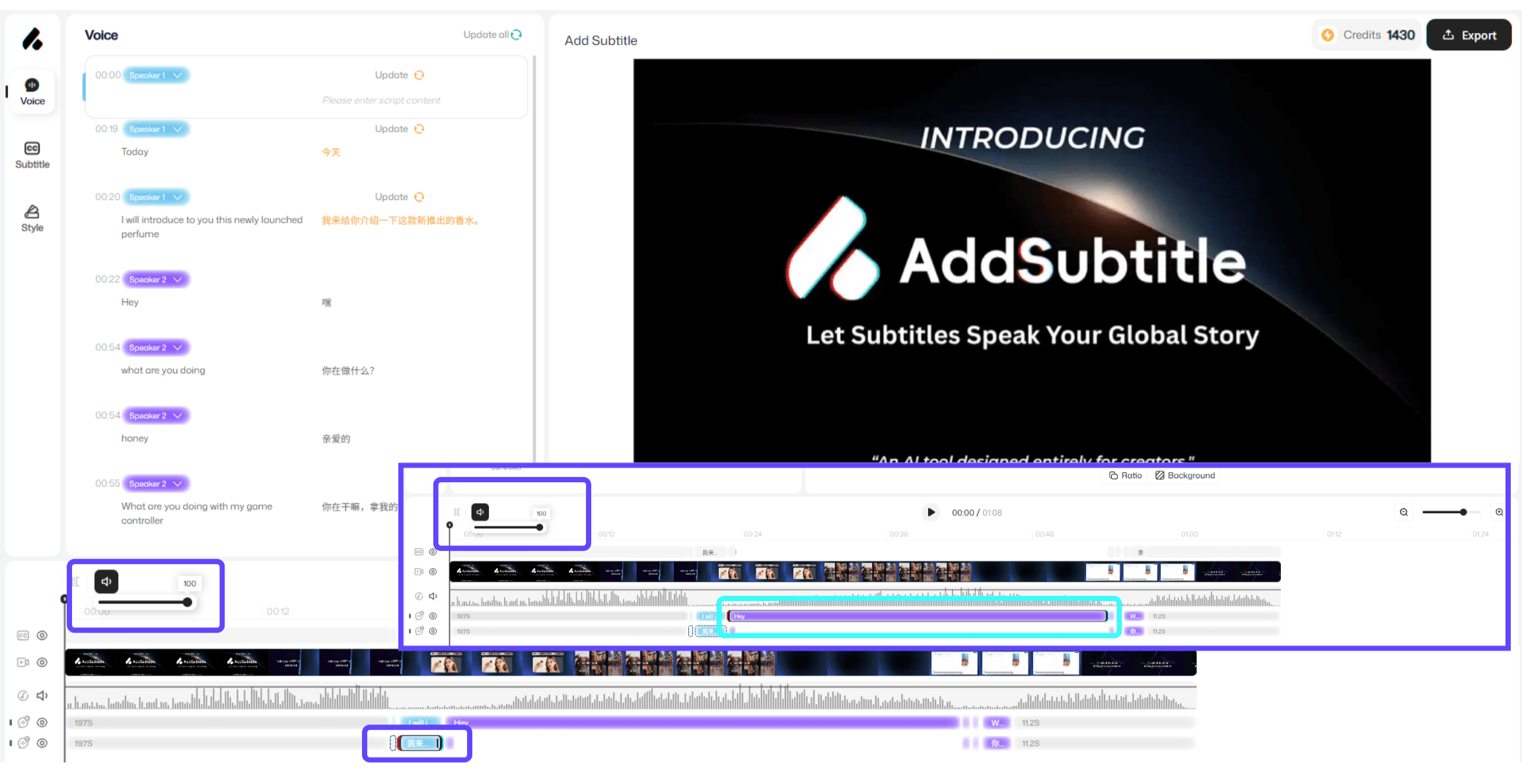
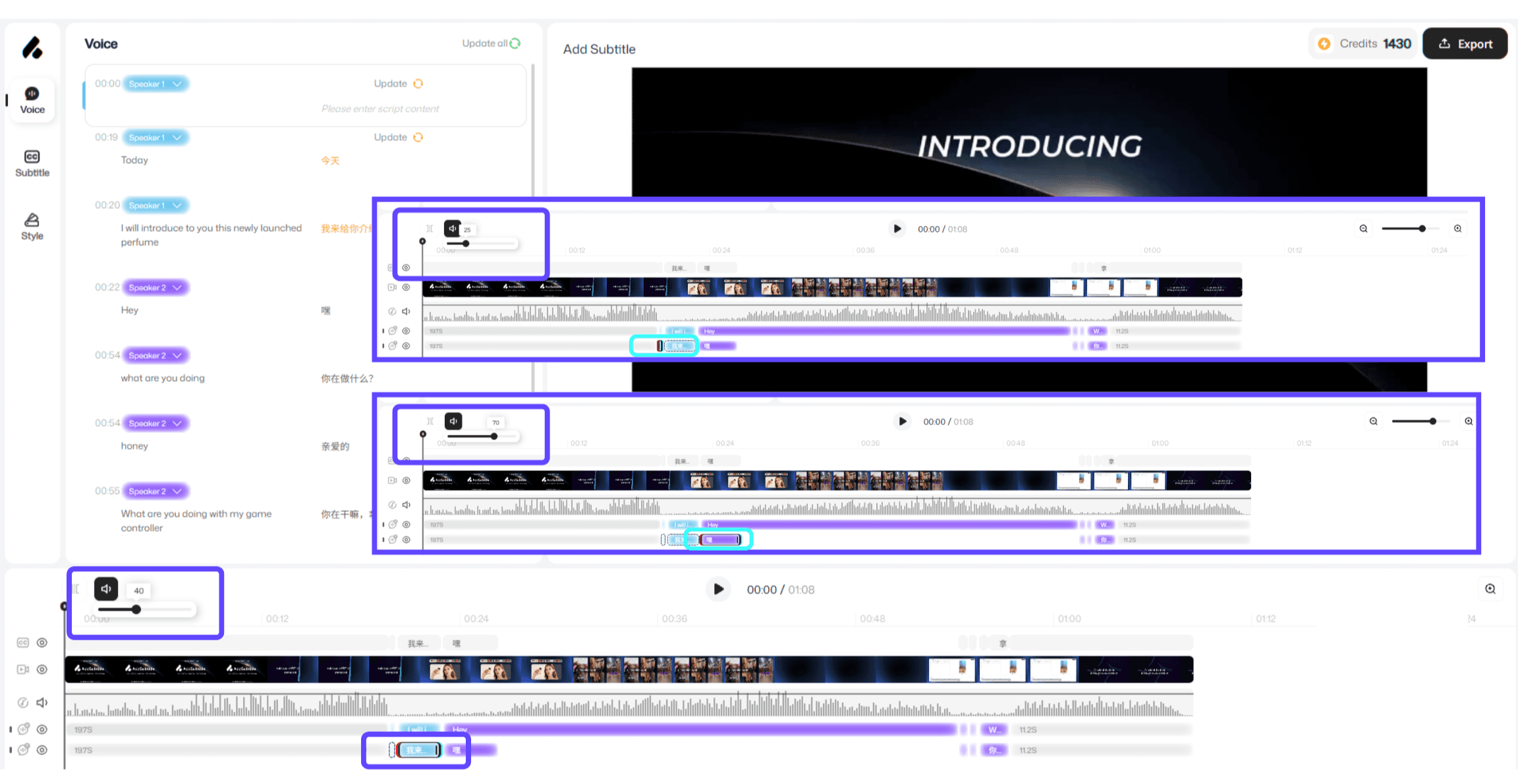
Add Subtitle supports volume control for both the original video audio and dubbing tracks. The original audio uses a unified volume setting—after it’s split into multiple segments, volume changes still stay synced across all original-audio segments. The dubbing track, however, is managed independently by 「Dubbing Block」, so you can adjust the volume of different dubbing blocks separately for more precise control.
Original Audio Track | Dubbing Track |
|---|---|
 |  |
2、How to Use
Adjust original video audio (applies globally)
In the editor, locate the original video audio track.
Click any original-audio segment or the volume control entry for the original-audio track.
Drag the volume slider to adjust (the change will sync and apply to all original-audio segments).
Adjust dubbing volume (set per block)
In the editor, locate the dubbing track.
Click the 「Dubbing Block」 you want to adjust.
Open the volume control for that dubbing block.
Drag the slider to set the volume level for this dubbing block.
Repeat the steps above for other dubbing blocks as needed.
3、Usage Notes
「Dubbing Blocks」 can’t be split: at the moment, dubbing blocks can’t be divided into smaller segments. If you need finer segment control, we recommend creating multiple dubbing blocks instead.