Get to Know the Add Subtitles
1.What Is Add Subtitles?
The 【Add Subtitles】 feature in Add Subtitle uses AI to automatically recognize speech in your video and generate subtitles. It also supports translating subtitles into 130+ languages. With Add Subtitle, you can generate and translate subtitles quickly—significantly reducing the time spent on manual transcription, translation, and proofreading, so your content can reach global audiences faster.
2.Add Subtitles Editor Overview
1) Start Adding Subtitles
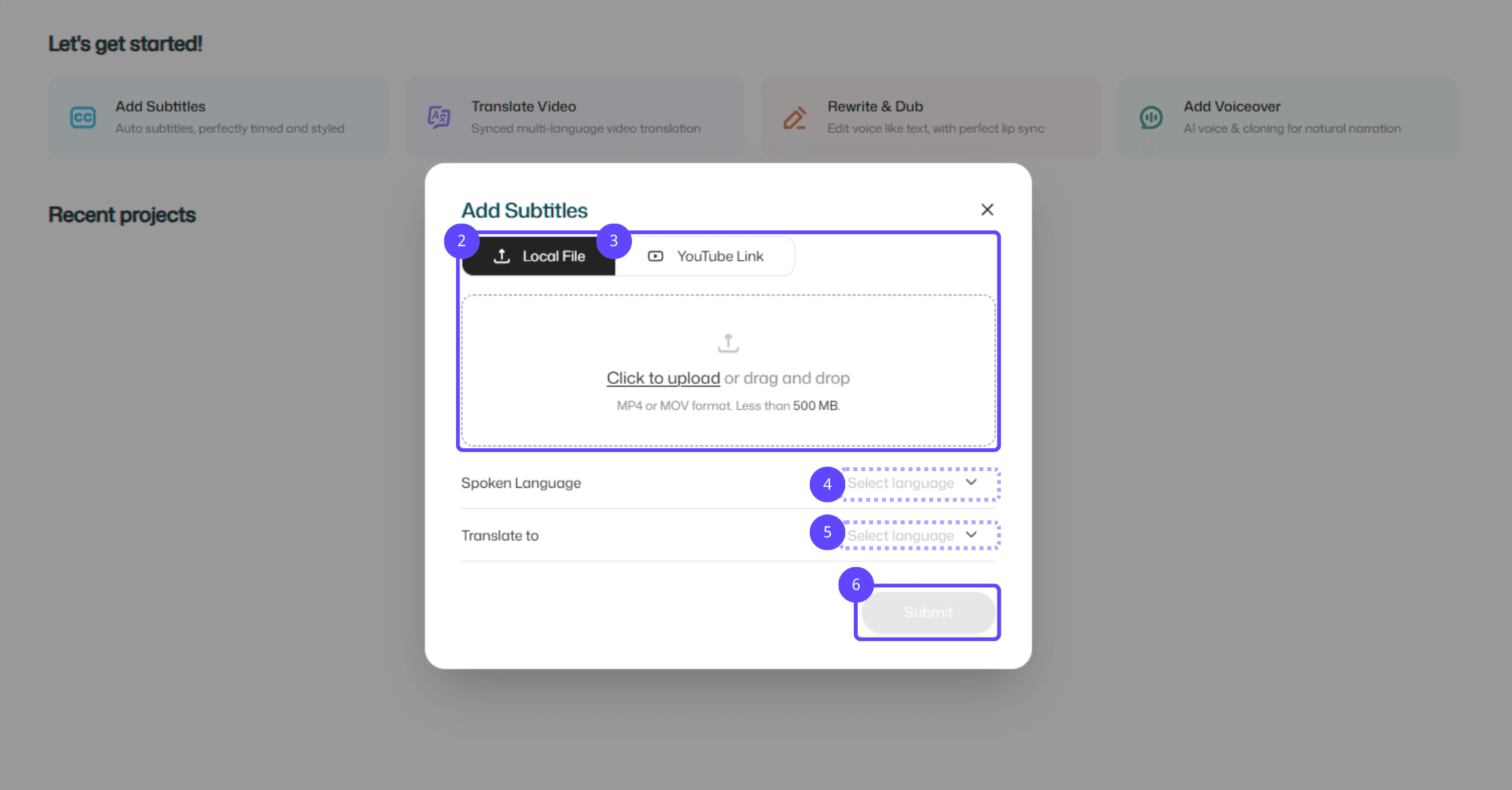
Feature entry: Click to open the Add Subtitles page.
Local file: Upload a video from your device, or drag and drop the file into the upload area.
YouTube link: Paste the YouTube video link to import the video.
Video language: Select the original language of the video (to improve recognition accuracy).
Translate to: Choose the target language you want your subtitles translated into.
Submit: Confirm your settings and click Submit to start processing the video.
2) Editing & Preview Area
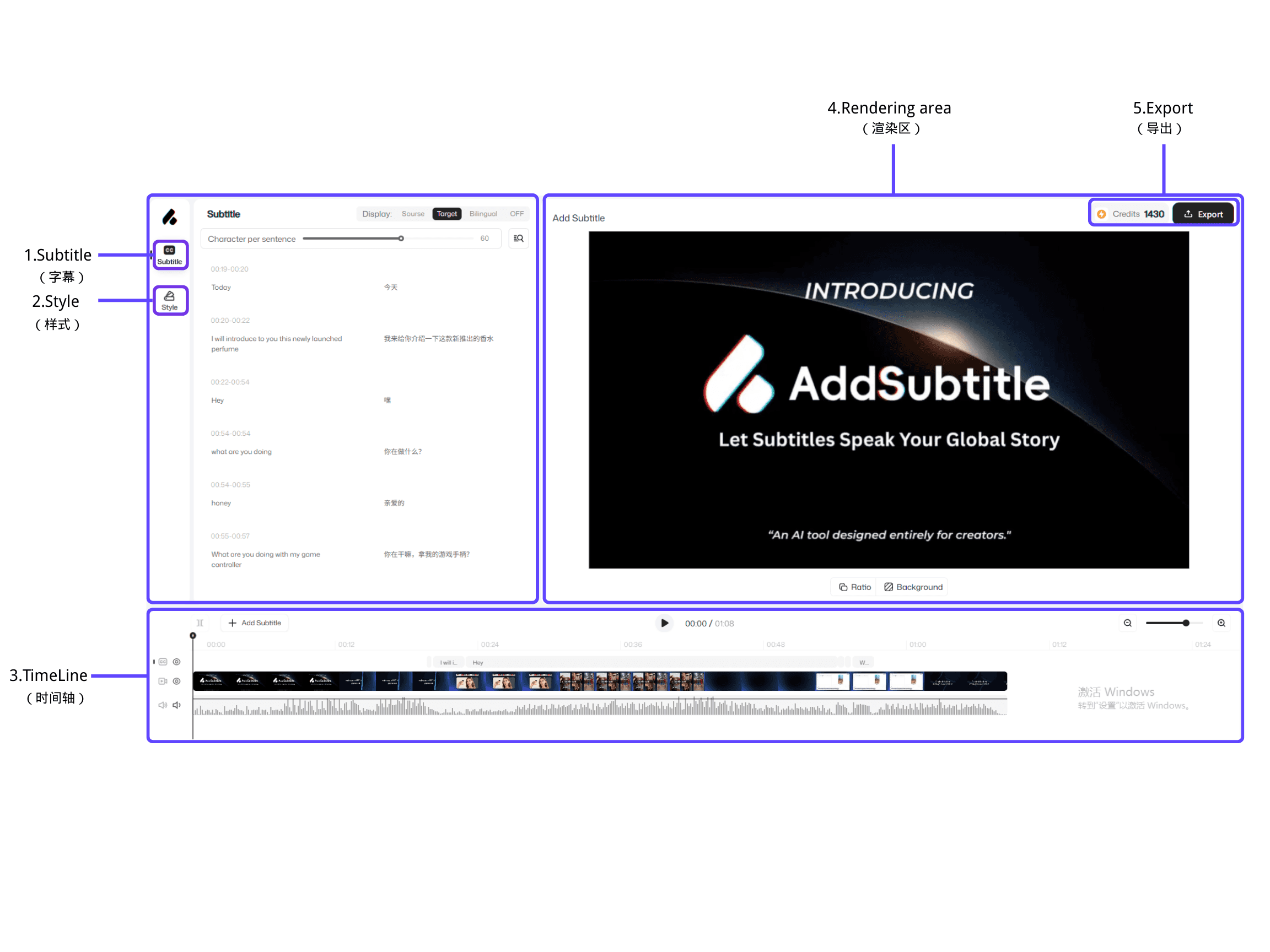
Subtitles: Switch to the Subtitles panel to view, edit, or add subtitle text. You can also choose how subtitles display—for example Bilingual subtitles or Translation-only subtitles.
Style: Browse and apply subtitle style templates to quickly keep your visuals consistent.
Timeline: Manage video, audio, and subtitle tracks in one place for precise adjustments.
Preview (Render) area: Preview how your subtitle style looks on the video in real time.
Export: Select export options as needed and export your video in one click.